Showing posts with label ipad. Show all posts

Wednesday, 14 April 2021

How to Manage Clock App Using Siri in iPad and iPhone

 Siri is an excellent assistant not just because it understands the commands and responds

quickly, but also for controlling most things on iPad and iPhone devices. Users can use Siri for
Homekit, but apart from this, Siri can also control the Clock app, and track time zones of
different countries simply by asking. So if you’re willing to find Siri’s potential in terms of


controlling the clock by your voice, read below.
How to Track the Time of Any City with Siri
The Clock app of iPad and iPhone can perform several tasks, and keeping track of different
country timings is one of its features. People who want to stay updated with the timing of other
countries should use Siri. You can ask Siri about the current timing of any country in the world.
Here’s how to do it:
 Tap and hold the Power button or Home button or simply say Hey Siri on iPad and
iPhone to activate Siri.
 Ask Siri something like, What’s the time in Naples, Italy?
 Siri will tell you the right time in just a second.
How to Set an Alarm on iPad and iPhone Using Siri
 Tap and hold the Power button or Home button to activate Siri.
 Now say something like, Set an alarm for 8.30 AM or Wake me up after 1 hour, and Siri
will set an alarm for the respective timing.
How to Edit Current Alarm Using Siri
Another reason for saying Siri an excellent assistant is because it can also edit the existing
alarms. 
 Tap and hold the Power button and Hold button or simply say, Hey Siri to activate Siri.
 Now say, Change 5 AM alarm to 8 AM.
However, if you have enabled multiple alarms, then Siri will confirm for which alarm you’re
asking.
How to Delete an Alarm Using Siri

Apart from setting up and editing an alarm, users can also delete the alarm using Siri. The
process of deleting an alarm using Siri is pretty simple, and here’s how to do it:
 Tap and hold the Home button or Power button or say, Hey Siri, to activate Siri.
 Now say, Delete my 5 AM alarm.
If there are multiple alarms for that particular time, then you’ll have to choose which one to
delete.
How to Delete All Alarms Using Siri
 Tap and hold the Power button or Home button or say, Hey Siri, to activate Siri.
 Now command, Delete all existing alarms.
 Click Yes if Siri asks to confirm the command of deleting alarms.
How to Set a Timer Using Siri
If you don’t want to open the Clock application and move into the Timer section to start the
countdown, then Siri is there for you to get the job done.
 Tap and hold the Power button or Home button or say, Hey Siri, to activate Siri.
 Now say, Set a timer for 20 minutes.
 Now just after the command, Siri will start the timer.
 To check the timer, you can open the Clock app and click on the Timer option.
Conclusion 
Using Siri is nowhere tough. With every new OS update, Apple brings something new in Siri and
also increases its intelligence. Users don’t have to open the Clock app to set or delete an alarm.
However, if multiple alarms are enabled, then users will have to choose which one to delete first.

Ella johnson has extensive expertise in Microsoft Office and has spent a good part of her life working in the technical industry. Ella has written several technical blogs, manuals, and reviews for several renowned websites. web software blogs

Source: How to Manage Clock App Using Siri in iPad and iPhone

Friday, 22 May 2020

How to Screen Record with External Audio on iPhone and iPad

iPhone and iPad have a built-in screen recording option which you can use for various purposes, for instance, recording a tutorial to send to someone, or screen recording instead of taking a lot of snapshots.
Most of the users are not familiar with the sound that could be recorded while you screen-record. the iPhone’s in-built microphone also lets you record the nearby sounds when you’re screen recording.
If you’re curious about this feature, the detailed step-by-step tutorial would clear all your queries and introduce you to a new feature that was unknown for so long.
Before jumping to the steps, let’s get to know three significant advantages of screen recording:
record iphone
  1. Save Online Streaming to Re-Watch Later
Quoting examples here will give you a better understanding. For instance, you use social media every day, every hour. If there are any of your favorite celebrities or your best friend or anyone who’s close to you, go live, there is no way you can watch it later than screen recording the live session.
Another example is, suppose you’re following a page which posts content that you would like to share with your friends as well, but they’re not following it. In case of a private page, they won’t be able to access the content. Thus, you can share it via screen recording.
  1. Get specialized assistance
If you’re facing any problem with your device and want to seek help from an expert, you can screen record the problem occurring instead of describing it in words to avoid any miscommunication.
Screen recording will prove to be a great deal in such a situation.
  1. Keep a Record of Conference or Video Calls
If you’re a part of an important meeting, you can record the whole video call to avoid missing out on anything for later use. Screen Recording enables you to save the video in your gallery, and you can watch it as many times as possible.
The steps to record sound while you’re screen recording on your iPhone and iPad are:
  1. For your iPad or iPhone X and later, swipe from the upper right corner of the screen to access the control center. While, on the other hand, if you have an old iPhone with a home button, you need to swipe up from the lower part of the screen to access the control center.
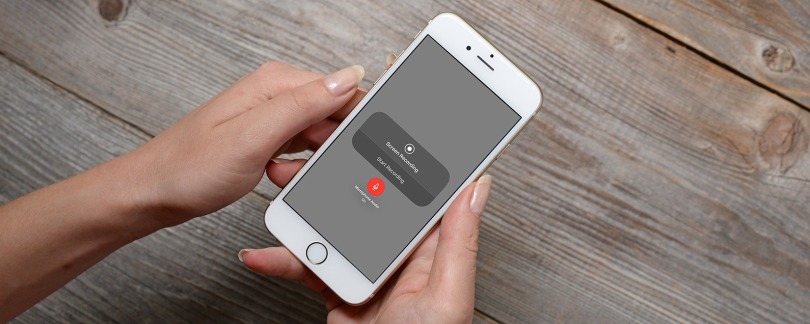
  2. You’ll see a ‘Recording’ button in the control center. If you simply want to start the recording, tap on the button, and it’ll take three seconds to start.
But here you’re learning about turning on the microphone. Therefore, press and hold the recording button and more options will pop-up.
  1. By default, the microphone button will be turned off. Tap on the microphone button to turn it on.
  2. If the microphone button turns red, it’ll specify that your microphone is ready to record the exterior voices.
These are the simple steps to follow in recording any external voices in more than one situation, which can prove to be useful.
BIO:Eva Winget is an avid technical blogger, a magazine contributor, a publisher of guides and a professional cyber security analyst. Through her writing, she aims to educate people about the dangers and threats lurking in the digital world

Tuesday, 10 December 2019

HOW TO CONNECT PS4 CONTROLLER TO THE IPAD OR IPHONE

Someone who prefers controller for playing games rather than using on-screen controls, it is happy times for you people. After the years, the PS4 controller connecting with iPhone or iPad feature is now available. Apple has permitted the gamer to play games by using Bluetooth. If you have always played with Play station controllers, then you will surely know about that comfort of playing with controllers. If you have a PS4 controller and want to connect it, then you may find this blog helpful. Go through the blog and follow the instructions to connect the PS4 controller to the iPad or iPhone.
PS4
How to Connect the Playstation Controller to the iPad or iPhone
If you want to connect the Playstation controller to the iPad or iPhone, then you can follow the provided steps:
  1. Click and hold PS and share tab at the similar time until a light starts flashing.
  2. Go to Settings on the device.
  3. Press Bluetooth.
  4. Locate the PS4 controller below “Other devices” and click on it to complete the pairing procedure.
  5. Users can now use their PS4 controller to play the games on the App store right of iPad or iPhone.
  6. Most of the games connect to the controller by detecting automatically and starts working.
  7. Other games will display the controls on the screen.  However, games like Fortnite, let you set up which buttons are responsible for what in the action of the game.
 How to Disconnect PS4 Controller from iPhone or iPad
If users want to connect their PS4 controller to another device then they have to disconnect it from the iPad.
If you want to disconnect PS4 controller from iPhone or iPad, then abide by the given instructions:
  1. Go to Settings.
  2. Click on Bluetooth. Then press the ‘i’ button next to the controller.
  3. Select “Forget the device.”
If you are someone who loves playing games on an iPad or iPhone, then you will surely love to play the games using a controller. So select your favorite game and try them. Whether the game is from the Apple arcade or any popular games like COD mobile, Fortnite, PUBG, and if you have PS4 laying, then users must try these games on the controller.
Users need the iPad or iPhone with iOS to use this feature. Apple announced it at the show of iOS 13 and iPadOS 13, which is the feature that gamers have waited for. Now, as the device can connect to a PS4 controller with the iOS games, it increases the opportunities of games that may not have been available earlier.
Howdy, I’m Eva. I’m a web developer living in United States. I am a fan of technology, design, and surfing. I’m also interested in programming and writing. You can read my blog with a click on the button above quicken support.
source: HOW TO CONNECT PS4 CONTROLLER TO THE IPAD OR IPHONESomeone who prefers controller for playing games rather than using on-screen controls, it is happy times for you people. After the years, the PS4 controller connecting with iPhone or iPad feature is now available. Apple has permitted the gamer to play games by using Bluetooth. If you have always played with Play station controllers, then you will surely know about that comfort of playing with controllers. If you have a PS4 controller and want to connect it, then you may find this blog helpful. Go through the blog and follow the instructions to connect the PS4 controller to the iPad or iPhone.
PS4
How to Connect the Playstation Controller to the iPad or iPhone
If you want to connect the Playstation controller to the iPad or iPhone, then you can follow the provided steps:
  1. Click and hold PS and share tab at the similar time until a light starts flashing.
  2. Go to Settings on the device.
  3. Press Bluetooth.
  4. Locate the PS4 controller below “Other devices” and click on it to complete the pairing procedure.
  5. Users can now use their PS4 controller to play the games on the App store right of iPad or iPhone.
  6. Most of the games connect to the controller by detecting automatically and starts working.
  7. Other games will display the controls on the screen.  However, games like Fortnite, let you set up which buttons are responsible for what in the action of the game.
 How to Disconnect PS4 Controller from iPhone or iPad
If users want to connect their PS4 controller to another device then they have to disconnect it from the iPad.
If you want to disconnect PS4 controller from iPhone or iPad, then abide by the given instructions:
  1. Go to Settings.
  2. Click on Bluetooth. Then press the ‘i’ button next to the controller.
  3. Select “Forget the device.”
If you are someone who loves playing games on an iPad or iPhone, then you will surely love to play the games using a controller. So select your favorite game and try them. Whether the game is from the Apple arcade or any popular games like COD mobile, Fortnite, PUBG, and if you have PS4 laying, then users must try these games on the controller.
Users need the iPad or iPhone with iOS to use this feature. Apple announced it at the show of iOS 13 and iPadOS 13, which is the feature that gamers have waited for. Now, as the device can connect to a PS4 controller with the iOS games, it increases the opportunities of games that may not have been available earlier.
Howdy, I’m Eva. I’m a web developer living in United States. I am a fan of technology, design, and surfing. I’m also interested in programming and writing. You can read my blog with a click on the button above quicken support.

Monday, 9 December 2019

How to Recover the Deleted Emails on iPad or iPhone


There are several instances where users accidentally delete their files and want to recover it. There is a chance that you can recover your deleted emails on iPad and iPhone as well. There are several email service providers, including Yahoo, Gmail, iCloud, Or Outlook, and many more. However, a default email application that has already installed on the iPad or iPhone allows users to connect to it. The stock app of email like other mail application let the users to archive and delete emails. If you have removed the mail unintentionally and want to recover it, then you may find this blog helpful. Read the blog to get the idea to recover the deleted Emails on iPad or iPhone.
recover-deleted-emails-on-iphone-ipad
How to Recover Removed Email on iPad or iPhone
If you want to recover email on an iPad or iPhone, then abide by the given steps:
  1. Go to the Mail app on iPhone or iPad and then click on Mailboxes.
  2. Select Trash. If users are using other email providers like Hotmail, then you may not find bin but with different names like trash or junk.
  3. Ensure that the deleted files are in the Trash folder. Check that they are removed emails as they are different from archived emails.
  4. When you are in Trash, click on Edit.
  5. Choose the emails you need to recover and then click on Move.
  6. Then you have to select the location wherever you need to move mails. If the emails deleted from the inbox, click on Inbox or drafts or Sent depending on the choice.
  7. Then you get the recover emails on the location you have selected.
How to Recover the Archived Emails on iPad or iPhone
If you want to recover the archived emails on iPad or iPhone, then you can follow the provided steps:
  1. If the email is archived accidentally then locate them by clicking on Mailboxes at the top left corner.
  2. Press All mail if you are using Gmail. According to the service provider of the email that you are using, you have the archived option. Tap on the menu to see it.
In this option, you will find all the archived emails mixed with other mails, mainly if you are using Gmail. When users are on an archived email that they need to get:
  1. swipe left and clicked on More.
  2. Then select Other Mailbox.
In this option, you have to select the location where you want to recover the archived email. If the users need to shift it in Inbox, then click on the Inbox option.
Immediately Undo and Recover Deleted Files
If you wish to immediately undo and recover deleted files, then pursue the given instructions:
  1. Next time when you swipe and delete the emails accidentally, then you don’t have to follow such instructions. With the help of the iOS gesture, you can recover all the removed emails in seconds. Shake the iPad or iPhone to undo the delete to occur on display.
  2. Click on Undo to ensure and recover removed files.
Users can use this gesture only to recover the deleted emails until you have not closed the Mail app. Ensure that you are not late, or else you may need to follow the entire process again, which is a little bit hassle that you may not want to do.
Eva Winget, an employee currently living in USA and working at a top printer service provider company in the day, and a technical writer at night. I am passionate about writing troubleshooting tips, beginner’s guides, news and other articles on varied topics like epson printer support, HP Printer Support, Canon Printer Support etc.