Showing posts with label microsoft. Show all posts

Wednesday, 8 July 2020

Microsoft Confirms Windows 10X is Coming to Laptops

More and more people all across the world are turning to Windows PCs during the ongoing health outbreak.

Microsoft has confirmed that it has started refocusing on windows 10X on devices with single screens. The chief of Microsoft windows and devices Panos Panay explained that the world has changed till the last October and has become a completely different place. He said that the company had designed Windows 10X to bring flexibility, which later enabled it to focus on bringing windows 10X for single-screen devices. The use of Windows 10X in single screen devices will become helpful for the users to learn, work, and play in several ways by using the power of its cloud. However, the company has not given any clue that when the single screen devices such as laptops will start supporting Windows10X. Also, the company has said nothing that when it is going to launch devices with dual screens with OS. Meanwhile, Panay has said that the company is looking for some right moment to bring the devices on dual screens to market and work on it with its partners of the original equipment manufacturer.
Microsoft is refocusing on Windows 10X for single-screen devices and laptops due to the ongoing health emergency. The company has witnessed almost a 75 of increase in the time spent by the users on Windows 10. Amid the ongoing health outbreak, more and more users are turning to use their PCs and laptops instead of tablet or smartphones all across the globe. The rise witnessed in the use of laptops and PCs is due to the ongoing health outbreak, which has forced people to work from home or study from home through online classes. The users are finding PCs and laptops more comfortable for working from home and for studying through online courses.
Initially, the software has made a plan to introduce Windows 10X for hardware such as Surface Neo, which is a dual-screen device. It was planned to introduce the operating system with a modern and enhanced Windows interface, which should be simplified and more stripped back. Now, the software maker has been working hard to bring the contemporary changes in Windows 10X along with enhancing the user interface and user experience design. The company is trying to enhance the user experience design in Windows 10X for improving some basics like multitasking. Also, the company is bringing changes for providing the users with quick access to Settings while using the start menu.
Till now, the software maker has only discussed and disclosed about running of Windows 10X on the foldable computer and dual-screen devices. However, some leaks are suggesting that the streamlined and enhanced operating system is going to appear on laptops also. Meanwhile, Microsoft is not saying anything regarding the launching date of the new operating system. Also, it is not disclosing anything about whether Surface Neo, which is a dual-screen device, is going to be delayed beyond the year 2020. It is also not clear that what other enhancements will be brought by Windows 10X to laptops apart from the improvements in user experience designs, container app technology, and modernization. Meanwhile, there are still some points needed to be explained for the devices of the dual-screen regarding Windows 10X. This is the reason the software maker is avoiding and very much careful regarding the introduction of two versions of the operating system for the devices of single screens.
Amidst all, chief of Microsoft’s devices and windows, Panay has said that going to build almost 1 billion Windows 10 devices for its users along with reducing the complexities in it. Panay further said that the company is going to give more focus on Windows seeing its importance during the ongoing health outbreak. He said the company is expecting to hear more and more about the virtualization Windows 10X parts powered by the cloud at the conference of Build developers.
Eva Winget is an avid technical blogger, a magazine, a publisher of guides at and a professional cyber security analyst. Through her writing, she aims to educate people about the dangers and threats lurking in the digital world

Wednesday, 1 July 2020

Best Tips and Tricks to Use Microsoft Planner Master Like a Pro

In the era of modern technology, the work of Microsoft planner increases as it’s designed to help employees and collaborate. Microsoft planner is the application than meets the need of the employee. Here are some of the features, tricks, and tips that will help you in becoming the Microsoft planner master.
Add emojis for a better impression
Everyone knows the power of the word, but sometimes the emojis plays better. The appropriate place for positioning the emoji is the title of the task, where it may seem to be more effective and efficient.
For choosing the emoji, you should choose the Windows key + and press that button until the board of the emoji gets opened. And after that, select your emoji and place them at your desired location.
Having emoji in the title can prove really fruitful for the recurring tasks
Emojis are very useful for executing specific tasks like graphic designs, testing, comas, to-do list, work in progress, and many more. Emojis may represent the category of the file, as we have mentioned earlier that adding emojis to the titles may providing a more visual and better approach.
Checklists, Attachments, and Notes to the Tiles can prove beneficial
Your work doesn’t end here. Adding emoji is not the ultimate task as it doesn’t help you in showing the progress of the functions and identify the pending project.
Checklist, attachment, or notes next to the titles can prove most convenient to see what is going on or which work is in progress.
For adding these kinds of stuff, the planner tasks should be opened and choose the “Show on Card” where you want to see the element on the title.
You can change the elements at any time, according to your need.
You can copy the whole plan or any single plan
It is a common issue that some individuals may bother while rewriting the same task bunch of times. It happens because they may have a single task to perform. They don’t need to bother much, copy it.
For copying the task, open-source tasks that you wish to copy and then click on the three-dot menu icon that you can see just on the top right, and you should choose the “Copy Task” badge.
Now, it’s time to choose the task that you wish to copy and then copy the content. 
After completing the last step, you have the element to generate dissimilar tasks. It becomes a great option when you can assign the same tasks to different individuals. The tasks may be the same but need to be performed for different organizations or different individuals.
If you want to use similar tasks a bunch of times, then you should copy the entire Plan.
For performing this procedure, you should click on the three-dot icon and select “Copy Plan.”
The copied Plan uses a similar file label with “Copy Of” prefixed of the title. You can change the name according to your need, and it will be available publicly to anyone in the respective company.
In mere seconds, the fresh Plan is visible in the “Recent Plans” section that may appear in the sidebar.
You should be aware that everything will be copied, excluding:
  • Task Dates
  • Task Comments and activity
  • Plan Favourite status
  • Task Attachments
  • Plan description
  • Task Progress
  • Plan Members
  • Task Assignments
It works well for the template blueprints, where you need a fresh version to perform daily tasks.
Choose Between Edit Tasks to Buckets 
The tasks that have been grouped the bucket list for use like To-Do list, In progress, and other kinds of stuff. The planner may also give you an option to assemble the tasks which are based on the property, such as Assignee, priority, due date, and other tasks as well.
For changing the tasks groupings, you can select the “Group by Bucket” badge that can be visible on the top of the right of the Microsoft planner interface.
You can choose a distinct way to curb several tasks, and it helps you in rearranging the tasks automatically.
Drag and drop the items between these buckets to change the location of the tasks. If you found any issue in testing, then you should not need to be a worry and drag them that have been tested back in the column.
The procedure is must easier and quicker for performing several tasks and editing each field.
Add the Tasks and change the date
You should click the “schedule” option appear at the top of the Plan if you like to see the tasks done by the Due date. It will open the tasks in the calendar view. You can also add new tasks, drag the tasks to the distinct days to provide new due dates, or you may also move tasks off the calendar to remove the due date.
The format of the schedule shows the current month by default, but you can click the “Week” if you want to see the button to display a week’s view instead.
The schedule view is considered as the best and the most crucial way in Microsoft Planner to get a bird’s-eye view of everything you wish to do. It can make much easier tasks for you to understand the workload when anyone can able to see it. When you see by the week or by the Month, you should copy the task and paste them to provide a new date that will change your due date.
Contrarily, you can also take any task from the list of the “Unscheduled Tasks” from the calendar. For adding new tasks, you should select the “Add Task” menu, or you can also select the Plus (+) sign on any date that will inevitably set the fresh Due Date.
The Schedule view will also give you a diverse outlook on the outcome of the tasks and also provide precise detail of pending work.
View Planner File Store’s Attachments 
Over some time, your Plan may have a considerable amount of attachments like spreadsheets, images, documents, and other things as well. If you need the attachment again, then you can find them easily in the store where all the files have been stored.
For completing the procedure, you should click on the three-dot menu that has been appeared at the top of the Plan, and then you should click the “Files” on the menu.
It will open the fresh tab in the browser, which shows all the tasks.
You can manage the list of the files and can make corrections like edit, add, or delete the files. But you should be aware, and if you remove any file from the list, it will also obsolete from your current Plan. For the quick finding of any of your tasks, by following this procedure, you can do it.
If you follow these tips and tricks, you’re on the right way for becoming the Microsoft Planner master.
Eva Winget is an avid technical blogger, a magazine, a publisher of guides at blogs-search.com and a professional cyber security analyst..  Through her writing, she aims to educate people about the dangers and threats lurking in the digital world

Wednesday, 3 June 2020

Review of the All-New Microsoft Surface Earbuds

Good news is coming for those who were eagerly waiting for the Microsoft Surface Earbuds. Now the company has announced it for the public. Finally, the product is available for sale. Microsoft is a latecomer as in 2020, as Google already released second generation Pixel Buds. Even the Sennheiser debuted a set of completely wireless earbuds.
Despite its strong competition in the market, the company says that Microsoft Earbuds offers more comfort than its rival earbuds. The product also stands out from the queue due to its design, sound quality, and other features. Microsoft has released its first truly wireless earbuds, but there is a problem as most of the rival companies have already released two or three earphones.
960x0
This Microsoft Surface earbud is the perfect example of the company’s hardware, unique, and eye-catchy design with a better quality of sound. These features made this product fearless to compete from the already existing earbuds in the market. Either you will love or hate the look of the product. But there will be no one who will rate this product as the average product. Wearing this earbud may look like you have worn a pop socket in your ears.
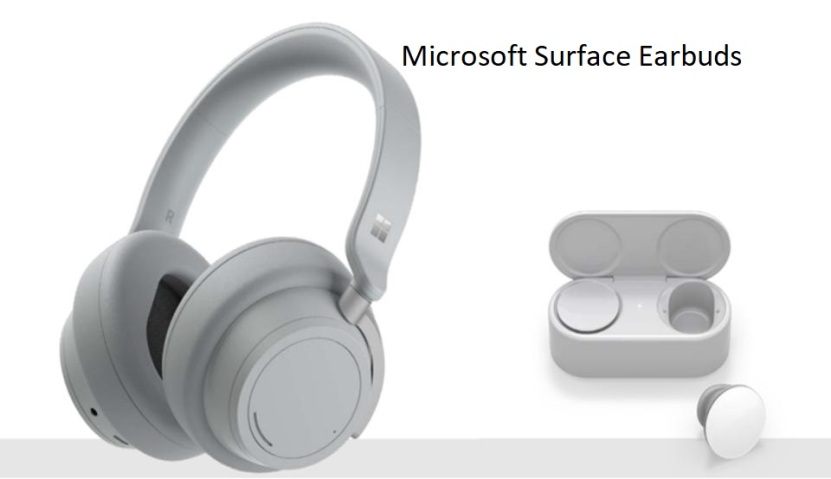
For a better understanding of the product, look closer to the product and examine it precisely. You may find acoustic mesh grills and sleek design that shows the precision of the product. If you want more than the design, then Surface Earbuds will come with the water-resistant feature, and they can resist the splashes from any direction.
The product is launched with a glossy appearance with a changing case, having shaped like a pill. There you will find the USB-C port along with a pairing button on the bottom of the box. Unfortunately, you will not get the wireless charging feature with this product. But the product is so pocket-friendly.
These earbuds are available in the open design, something like original AirPods. The earbuds will rest in your ear instead of filling in your ears with a terrific comfort level. There is a common issue that most individuals usually complain about the discomfort caused when they wear those earbuds for a longer time, but you will not face this issue with this product.
There is a drawback of the openness of the product as sometimes, you will hear tons of noises while wearing this earbud. It might not be an issue for someone, especially when you remain at home, but you may need a higher volume to hear the speaker’s voice in the crowded area through the Surface Earbuds.
There is another issue with its open design as it restricts the potential of bass in the buds, which is always present in a good and known company’s earbud. Regardless of these things, Microsoft Earbuds will give you a well-balanced voice to listen to your favorite music.
The surface earbud is providing a significant eight hours of continuous battery life when charged once. There is a sensor in the product that means if the buds were put at anyplace idle for 10 minutes, then it will power down itself for retaining the battery life. Even there is a feature that will show the remaining battery life on each earbud. Like, when the battery of the buds gets drained, then a single LED light inside it will turn into red. That is the only indicator of the battery of the product. At this point, the competitors of Microsoft have multiple LED light to indicate charging level.
You should tap on the surface of the bud to play, pause, or skip the song. If you swipe forward, then you will hear the next song and for hearing the previous song, swipe backward. But the presence of Siri or you can also say that Google assistant will have some glitches with these controls. Unfortunately, you couldn’t have the customization to control Microsoft, but you can disable them if you don’t need these features or facing any difficulty while handling.
Some features are completely omitted from the list of Microsoft’s earbuds. These features are:
  • Auto-pause feature when one earbud gets out from the ear
  • No ear detection
These are some of the points that anyone will hesitate to spend $200 while buying any product. But they have offered a fantastic feature EQ customization, which is only available for the surface audio surface application, which is available in all smartphones (iOS, Windows, and Android).
The company is working in all the ways so that these earbuds can help you in being more prolific with their all official applications, specifically Office 365 apps. You can dictate your project or written material in outlook and word. And if you always dreamt of working on PPT with your voice command, then this product will prove handy for you. No doubt, it’s not a new feature, as it is already prevailing in the market, but will give better experience.
But you will not be able to join two devices at one time, like your laptop and mobile phone at one time. Each earbud has two mics that can provide excellent quality of the speaker and can give you a better experience while video calling or video conferencing. You can use either earphone if you wish to, but your left earbud will depend on the right one for connecting any device. Means if you want to use your left earbud, then the right one must have to be around the left one, irrespective of in or out of the box.
If we compile all the strengths of the products, then you will get the following:
  • Long battery life
  • Airy comfort
  • Good voice quality
But when the price of the product gets evaluated with these features, then you may feel $200 is a little high price for the product.
If you have the habit of putting earbuds regularly, then this deal will prove a good try. There is nothing in this product that makes this product a must-buy product.
Eva Winget is an avid technical blogger, a magazine, a publisher of guides at Blogs post, and a professional cyber security analyst.. Through her writing, she aims to educate people about the dangers and threats lurking in the digital world