Friday, 8 May 2020

Make Memes or Royalty-Free Images with Paint 3D

Paint 3D is an inbuilt tool on the Windows 10 operating system, which takes Standard Microsoft Paint application and adds several modern features. It is a great tool for background removal and in this article, we will show you how you can remove the background from the image through paint 3D.
BLOG 2
Paint 3D tool is a modernized version of MS Paint that brings several useful features. It is also true that it is not powerful enough to be used professionally, butif you want to remove your white background and create a transparent pic for memes or blogs, then it is straightforward to do. Here is how you can do it:

Removing Background from Image in Paint 3D
Here are the steps on how to remove background from Image in Paint 3D:
  1. Launch the Paint 3D by entering “Paint 3D” into the start search field.
  2. Select your image that you want to use by choosing open, then tap “Browser Files” on the next screen.
  3. Here you need to use File Browser to locate the right file that you wish to edit.
  4. You can also right-tap on the file and then choose edit with Paint 3D when you know your file location.
  5. Choose the “Magic select” option.
  6. Now Paint 3D will automatically start guiding you via the process. Now you need to crop the image and remove the unrequited area.
  7. Tap Next.A green edge popup on your screen around the image that Paint 3D thinks that you wish to cut.
  8. You can also zoom out and zoom in through scrolling the mouse wheel and Add or Remove an additional portion of the image through the tools on the right side of the bar.
  9. When you tap on done, your image cutout will pop up on your screen as a spread image that you can move around.
  10. Now you wish to remove the canvas background of your image, and then you need to visit “Canvas” and then choose “Show Canvas” toggle to hide. The background will automatically turn grey.
  11. Now can save your transparent picture, then go to Menu that appears in the upper left and then tap on Save.
  12. If you wish to choose PNG for your picture, then you remember that this is an image format that makes your image transparency. Also, you can choose the “Transparency” toggle in the box that appears on your screen.
  13. If you wish to remove the additional area around from your image, choose Adjust angle and Farming. That appears on the top of the screen.
  14. You can also choose an image ration size and then zoom and reposition your picture to frame it.
  15. Tap “OK” to back to the same screen, and then hit “Save” and choose a location to be final save your image.
Turn Cut Out The Image Into A Sticker.
Here are the steps on how to turn cut out the image into sticker:
  1. You can also use your image as a sticker to use in ant project or according to your use. Here you need to “Make Sticker” after cutout the image.
  2. When you launch the application, you can also see a sticker available in the application, but you are not able to start a project with a sticker. You need to save spread for further use.
  3. Choose the “Stamp” symbol that appears on the left of your screens, paint the sticker into the canvas background.
  4. If you wish to use another image the choose Menu that appears on the upper top corner and then tap “Open to launch a new file. The sticker will store in the customer sticker.
  5. Now you can choose your image and select a sticker to go creative.
Eva Winget is an avid technical blogger, a magazine contributor, a publisher of guides at mcafee.com/activate, and a professional cyber security analyst. Through her writing, she aims to educate people about the dangers and threats lurking in the digital world
How to Fix “ Your PC Ran into problem & Needs to Reboot”

How to Share Screen on Google Meet?

Google Meet is one of the best video meeting application and is also known as Hangout Meet. It offers you to work on meeting room equipment and it’s also available on mobile and web browser. But many users ask how to share the screen on Google Meet using the options of screen sharing in the Android, Chrome and iOS devices or tablets. So, here are the instructions to share the screen on Google Meet.
googlemeets
Share Display on Google Chrome
If the users are attempting to share the display on Google Chrome, then they should correctly employ the given instructions.
  1. You should invoke the Google Meet via the Google Chrome on the laptop or desktop.
  2. Don’t forget to log in to the right account of Google.
  3. Then join or begin the existing meeting.
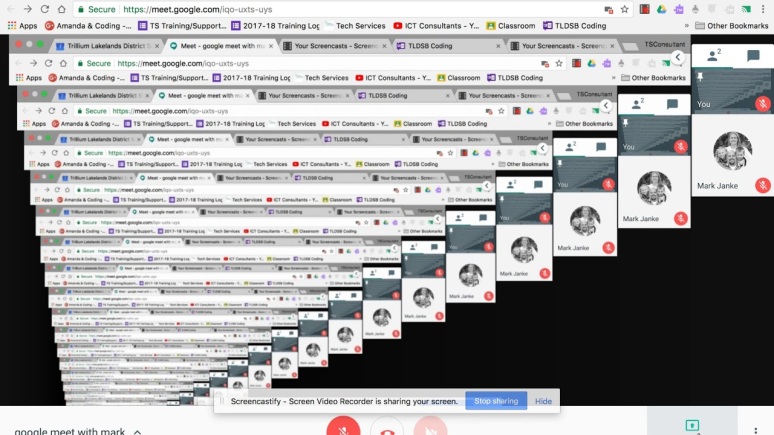
  4. Go to the meeting display and select the Present, pursued by ‘Present Now’.
  5. Since you would like to share the screen, you will possibly wish to select the whole screen via the menu of drop-down of the presentation button.
  6. Optionally, you should share the screen of active Google Meet.
  7. Then choose the ‘Share’ option, and you will be noted to share the whole window. In case you are sharing a window, you require to understand which screen to share and verify.
  8. While the participants, the presentation will view the webcam feed together with the window.
  9. Now, if you would like to Prevent Presenting at whatever time, select that button.
Share Display on Tablets and iOS Phones
If you would like to share the display on tablets and iOS phones, then you can determine to pursue the directions given below.
  1. First of all, invoke the application of Google Meet on the phone.
  2. After that, begin or join a meeting.
  3. You should drag down from the upper side of the device and choose Control Center.
  4. Long press the Screen Recording button from the menu.
  5. You have to choose the Meet option and select the Start Broadcast option.
  6. Then the screen will be shared with different participants. After completing the presentation, choose the ‘Stop Presenting’ from the application of Google Meet.
  7. In case you would like to the camera of the device in its place of sharing the display, hold the Camera button applicable within the menu of presentation.
Share Display on Tablets and Android Devices
If the users are attempting to share the display on tablets and Android device, then they should correctly employ the given instructions.
  1. You require to invoke the Google Meet on the tablet or Android phone.
  2. Thereafter, join or create a meeting.
  3. While the active meeting, hold the vertical ellipsis menu icon at the top right-hand side of the screen.
  4. Go to the Present Screen option.
  5. Now, tap on the Start Presenting, and the display will be shared.
  6. Click the Start Now option once you read the prompt message.
Eva Winget is an avid technical blogger, a magazine contributor, a publisher of guides and a professional cyber security analyst. Through her writing, she aims to educate people about the dangers and threats lurking in the digital world.

Monday, 4 May 2020

How to Fix “ Your PC Ran into problem & Needs to Reboot”
PCs issues often follow a very common pattern when it comes to the Blue Screen of Death, and the error occurs on almost every Windows device. The blue screen indicates a fatal OS issue, but luckily there are some methods that anybody can use to fix them. Here are the steps to fix the PC ran into problem and require to reboot.
reboot
Launch Safe Mode
If you want to launch the Safe Mode to fix ‘Your PC ran into the problem and needs to restart’ problem, then pursue the instruction given below.
  • First of all, you have to click on the Start on your system.
  • After that, you should go to the Settings option.
  • You have to locate the Update & Security and Recovery option.
  • Navigate to the Advanced startup and select the Restart Now option.
  • Then you should select Troubleshoot and Advanced options.
  • Go to the Startup Settings and Restart options.
  • Now, you should be able to select the Safe Mode option Startup Settings screen and reboot the machine.
Scan the Disk
If you want to scan the disk, then you can follow the provided steps.
  • You have to the right click on This PC and select Properties.
  • After that, you should find Tools and Tick, to locate a Scan drive option.
Check the System Log 
  • Get started by locating the Event Viewer through Start.
  • After that, go to the program and right-click on it and select Run as administrator.
  • Then you should expand the Windows Logs and select System.
  • Now, find the errors and troubleshoot them according to the detail.
Change the Memory Dump Settings
If you want to change the memory dump settings, then you can follow the provided steps.
  • To get started, press Win + S keys at once and go to the Advanced system.
  • After that, you should go to the results and choose ‘View advanced system settings.’
  • You have to select Advanced in the Properties screen, and beneath the Start-up recovery topic, select Settings.
  • Then beneath the System failure option, untick the box near to restart Automatically.
  • Navigate to the drop-down section and click on the Complete memory dump option.
  • Now, you have to apply the changes and restart the system.
Run a System Restore 
  • Firstly, you have to press Win + S keys at once and enter the system restore.
  • After that, you should select ‘Create a restore point.’
  • If System Properties screen launches, select System Restore option.
  • Later, you should carry on with the procedure by selecting Next.
  • Now, select the point and pursue the prompted steps.
Eva Winget is an avid technical blogger, a magazine contributor, a publisher of guides at mcafee.com/activate, and a professional cyber security analyst. Through her writing, she aims to educate people about the dangers and threats lurking in the digital world

Friday, 1 May 2020

Complete Project K, Bring K.K & Unlock Terraforming in Animal Crossing: New Horizons

While progressing the Animal Crossing: New Horizons game players will be asked about working on the Project K. players have to basically set up the island beautifully for accommodating the slider concert of K.K. it’s a task that players have to do in and for that in Animal Crossing: New Horizons there are few steps order that players have to do. It’s a crafting simulation game, so it is necessary to create several things to go further. Every completed step will take the players to complete the mission. Now to bring the K.K slider by finishing Project K here is what players have to know:
SCHZGV9t5r4VQLrDAtTuZ-1200-80
How to Finish Project K, Bring K.K. Slider to Island and Unlock the Terraforming
  1. Upgrade Resident Service to Building
To progress the Project K, the main thing players have to do is upgrade the resident service into buildings from tents. Upgrading to the buildings is necessary to complete the entire Project K task.
  • Speak Up with Tom Nook
Tom Nook will be available in the newly assembled resident service buildings. He will guide about what players have to do in order to invite K.K Slide in the concert. Basically, what Nook is trying is convey is that he also wants to work further for Project K, and for that, he also wants the island to be more upgraded. Invitation of K.K Slider will require several essential elements that players have to do to make their island interesting.
  • Urge the Villagers to Live on Their Island
Players have to invite other villagers to their village for the K.K concert. For the concert, it is essential, and there are prior two procedures to attract the new residential.
  1. The Campsite
The first camper on the camp will arrive randomly, but later on, the player can invite specific villagers into their camp location through amiibo cards. These amiibo cards can only be used in one condition when the ability to use them is unlocked otherwise, it’s not possible to invite. Inviting the people for permanent residents is possible, but it can only happen when it’s their choice. Players can ask them multiple times if anyone doesn’t want to stay permanently, but asking multiple times can change their decisions.
  • Island Trips through the Tickets of Nook Miles
Apart from the amiibo cards, players can also invite people on their island through Nook Miles Tickets. To doing that, firstly, purchase them from NookShop at the resident service and, after that, fly through the place to the inviting island. It will be realistic because their players might see several other villagers what they might never meet before. It is possible to ask them to live on their village.
  • Construct the Campsite
Tom Nook will ask the players for a perfect campsite on-island location because he is willing to inviting way more other people to the island. For doing that, it is become important to walk around the island and select the right place for campsite construction that will ready to show up on a particular day. If the campsite is constructed, it will still not be available for users on the first day, and players have to wait for the day when it open for anyone to show up at that campsite.
  • Do Some Improvements into the Island
Making an interesting Island is not an easy procedure, players have to look into every single thing and upgrade every essential thing. Project K require high star level of several parts and areas. Look into the star rating of the island through Isabelle at the Resident Service. She will guide about what area is require to upgrade and improve to make better score ratings. Most probably, players have to build buildings, inviting the villagers to live in and enhance the overall look of the site through decoration and other attractive items.
  • Construct new Houses
To Invite the Villagers, it is essential to have a bigger space for living and have constructed buildings. Making the Buildings are necessary, but Tom Nook might be eager to sell land for the construction of the house. For each house, it probably requires 10,000 bells for each house kit. Nook Miles will compensate when someone comes to live in the village, and their total of 10 villagers on the island can live in the placed houses.
  • Take Feedback from K.S.
It is essential to check on the Isabelle on her Resident Service for letting know the progress and what is still pending in working. She also read the written feedback of the visitors. Doing all these one days she will read feedback of “K.S.” and then Nook and Isabelle will note that feedback because that feedback will be from the K.K. Slider. Nook will talk on the call with K.K. about his upcoming concert and when he will arrive on the island for his performance.
  • Wait Until K.K. Slider Appear
K.K will appear on the island the day Nook will call him on the phone. When the moment arrives, the other villagers will gather together to hear amazing tunes of that pup, and he will even give a track which is called welcome to Horizon. K.K Slider will be a royal visit of the island that will appear on every Saturday in front of the Resident Service. He plays whatever songs he likes to play, and after almost one hour of playing, players can ask him to play any specific song.
Live in Concert
Now it is confirmed that K.K. Slider will arrive on the island every Saturday, and it’s a great way to enjoy the game even more and hear great tracks. Project K comes with several interesting things and also will help the island to be a better place to live.
Eva Winget is an avid technical blogger, a magazine contributor, a publisher of guides at mcafee.com/activate, and a professional cyber security analyst. Through her writing, she aims to educate people about the dangers and threats lurking in the digital world.

Friday, 24 April 2020

How to Check Windows Firewall is Blocking a Port?


Windows Firewall is an in-built security app that blocks any threatening connection on your system. The users should simply set up the settings accordingly, and then they can open or block the ports or programs as per their requirements in Windows 10. In case you are confused whether or not the system has blocked a port, then here is how you can find out:
FIREWALL
Check Windows Firewall
  • Hold the Windows and R buttons on the keyboard over the keyboard to invoke the Run section.
  • After that, insert ‘control’ into it and select the OK button to launch the Control Panel.
  • You should select the System and Security option.
  • Then move down and launch the Administrative Tools.
  • In the screen of Administrative Tools, launch the ‘Windows Defender Firewall with Advanced Security.’
  • Thereafter, go to the Actions option and then choose the Properties option.
  • You have to choose the desired profile like Public, Private, or Domain.
  • Go to the Logging field and then select the button of Customize.
  • Reach the menu of drop-down and select the Yes option.
  • You should take note of the path of ‘pfirewall.log’ in the field of Name.
  • Now, select the OK button to apply the changes.
  • Then launch the File Explorer and reach the path wherever the log file is stored.
  • Finally, navigate to the file of ‘pfirewall.log’ and look for any blocked ports.
Check Blocked Port via Command Prompt
  • Go to the Windows Search on your system.
  • After that, insert ‘cmd’ into it and hit the Enter button to invoke the Command Prompt.
  • Then select the Command Prompt and right-click on it then choose the Run as Administrator.
  • You should reach into the Command Prompt then input the pursuing command and press the Enter button: ‘netsh firewall show state’
  • Now, it will show you every active and block port setup in the firewall.
Check Blocked Program
  • Hold the Windows and R buttons on the keyboard over the keyboard to invoke the Run section.
  • After that, insert ‘control’ into it and select the OK button to launch the Control Panel.
  • You should select the System and Security option.
  • Then go to the ‘Windows Defender Firewall’ and launch it.
  • Reach the left-hand side panel and select ‘Allow an app or feature through Windows Defender Firewall.’
  • Navigate to the allowed application screen, move via all the applications.
  • You should find the application you would like to check and view whether the application is marked.
  • In case it is unticked, the application is blocked over the Firewall.
  • Now, when the program is blocked, untick the application and select the OK button.
Eva Winget is an avid technical blogger, a magazine contributor, a publisher of guides at mcafee.com/activate, and a professional cyber security analyst. Through her writing, she aims to educate people about the dangers and threats lurking in the digital world.

How to Connect the MacBook Air to a TV?

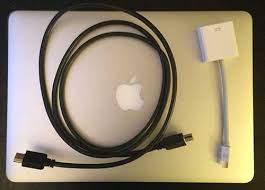
If you have MacBook Air,then you would be delighted to know that you can connect it to a TV for browsing the internet, share pictures or presentations, make a higher workspace, etc. There are many ways to connect your MacBook Air to TV and here are the simplest ones:
MAC BOOK
Link MacBook Air to the TV via HDMI
  • Remember that MacBook Air and TV are switched on.
  • After that, connect the HDMI cord into the applicable HDMI port on the TV.
  • You should attach the other end of the cord of HDMI to the ‘’Mini DisplayPort’ to the ‘HDMI adapter.’
  • Connect the ’Mini DisplayPort’ to the ‘HDMI adapter’ to the MacBook Air through the port of lightning.
  • Then switch on the TV and ensure that it adjusts to the right HDMI input.
  • Now, enable the MacBook Air and sign-in normally and view the show mirrored on the TV.
Link MacBook Air to the TV via Apple TV
  • Make sure that MacBook Air and Apple TV are turned on and linked with a similar Wi-Fi connection.
  • After that, click on the AirPlay button in the menu bar of MacBook Air.
  • You should see the menu of the drop-down.
  • Then click on the preference and choose the TV that you would like to link.
  • Now, you are linked and ensure that all media will work through the TV.
  • Finally, you want to detach the MacBook Air from the TV, click on the AirPlay button on the MacBook Air and later select the Turn AirPlay Off.
  • Optionally, hit the Menu button on the remote of Apple TV to switch off the connection.
Link MacBook Air to the TV via Chromecast
  • Firstly, switch on the TV and check it adjusts to show the Chromecast.
  • After that, turn on the MacBook Air and ensure that it’s linked to a similar Wi-Fi connection as the Chromecast.
  • You should launch Google Chrome on the MacBook Air.
  • Go to Chrome and click on the Chromecast button situated toward the upper right-hand side of the display.
  • It will launch the applicable Chromecast devices list.
  • You have to choose the Sources section and then click on the Cast section.
  • Go to the TV you would like to cast to.
  • After connecting, you will view a blue color circle.
  • The section is shown on TV.
  • When you have done, and you would like to detach the TV, click on the Chromecast section.Then choose the blue color circle or easily shut the tab of browser.
Conclusion
The article is about the ‘Connect the MacBook Air to a TV.’ Through the medium of this article, we will help the users to fix ‘Connect the MacBook Air to a TV.’We hope you will avail of this article and find it is helpful. It is advisable to be aware while reading the article to avoid any mistakes while implementing these guidelines.
Eva Winget is an avid technical blogger, a magazine contributor, a publisher of guides at mcafee.com/activate, and a professional cyber security analyst. Through her writing, she aims to educate people about the dangers and threats lurking in the digital world


Thursday, 19 March 2020

Five Best Xbox Games to Play While Staying at Home

The world is currently facing a novel outbreak that leads everyone to work from home. All the work in the global market has been declined, and various big ventures are trying to cope with it. Thus, the dwelling of the people at home has led to enhance the entertainment business. In the article, we are going to discuss the top five games that gamers can play on Xbox One nowadays to cure their boredom while dwelling at their home.
Xbox Games
The game mentioned in our list can also be played on other gaming consoles, but in the article, we are mainly manifesting the name of the top five games that are compatible to be played on Xbox One nowadays.
1. Darksiders Genesis
Darksiders Genesis is a famous action RPG that has been developed by Airship Syndicate. Although the game was released globally on December 5, 2019, for Xbox One, it has been launched recently on February 14, 2020. The game is quite fresh and is an exciting deal for the Xbox One gamers who haven’t experience it.
The game depicts the story of Horseman, Strife, who fight against Apocalypse, who wants to establish his rule over the world. The game comprises of numerous stunning fights and secrets that need to be revealed. The super-exciting RPG is probably the best resort for the gamers to play while trying to pursue an entertainment resort at home.
2. Control
The famous action-adventure video game of Remedy Entertainment; Control is seemed out to be another best choice for gamers. As the game’s objectives contain the life of the Federal Bureau of Control officer alongside various phenomena and consequences that he went through every day. The name of the enemy of the game is Hiss, and the centerfold character is known as Jesse Faden.
Control is an interesting action game that is based on the Science Fictional concept of concealing reality under the paranormal world. The game was released on August 27, 2019, and is a better choice for the gamers who are intended to experience a rare compact virtual world of science fiction and action together.
3. Sekiro: Shadows Die Twice
One of the most anticipated games of its time, Sekiro: Shadows Die Twice, is an action-adventure video game. The game was released on March 22 March 2019, and is being developed by From Software. The game depicts the story of Shinobi, better known as wolf due to its vengeance for a Samurai Clan. The game manifests the Sengoku Period of Japan, and Shinobi is fighting to obtain a rescue for its lord, who has been hostage by Samurai Clan.
The game objective is quite challenging and is definitely going to trigger the mind of veteran gamers. However, the players who haven’t experienced it can start playing it now to master it.
4. Gear 5
Gear 5 is a well-known third-person shooter video game of The Coalition that gets a release on September 10, 2019. The game is an improved version of the previous generation of the subsequent game from the Gear franchise. The game provides a horror alongside psychotic experience through its story, and the newly arrived version of it will help in enhancing it.
Gear 5 has more advanced specs than its predecessor, alongside new gaming and cooperative modes. Escape is considered one of the best modes to experience aggressive play. Thus, the game seems out to be a tremendous choice for gamers as staying at home often encourages the urge to witness horror, and Gear 5 is all about the horrifying and psychologically traumatic experience.
5. Devil May Cry 5
Devil May Cry 5 is a famous action-adventure video game of Capcom, which was released on March 8, 2019. The game is renowned worldwide for the return of Nero and Dante with an altered name; V. The game has been updated with new weapons, abilities, and features that mesmerize it experience more than its predecessor. The game seems out to be a better choice for the players who are trying to seek a virtual experience of action and adventure.
Eva Winget, an employee currently living in USA and working at a top printer service provider company in the day, and a technical writer at night. I am passionate about writing troubleshooting tips, beginner’s guides, news and other articles on varied topics like brother printer support, HP Printer Support, Canon Printer Support, webroot.com/safe etc.